
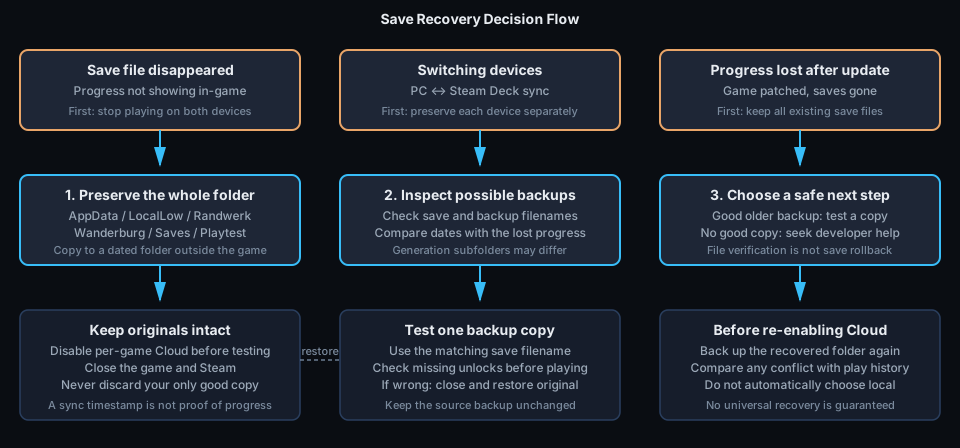
If Wanderburg opens with missing unlocks after a device change, stop playing and preserve the local files before trying another sync. Players have reported lost progress even when Steam says the cloud is up to date. Two players in the Wanderburg cloud-save discussion recovered progress from a local backup; their September 20 and 27 reports identify the Windows folder below. Recovery depends on a usable older copy still existing. [1]
Two devices disagree: which copy should you keep?
Preserve both devices separately, then identify the copy with the progress you recognise. In the “Steam sync bug” thread checked October 15, Trance_Port reports resets after changing devices and macros1980 independently reports the same problem. Neither supplies a confirmed repair. This is evidence of a continuing symptom, not proof that every Cloud user is affected. [2]
- Before another launch: close the game on both devices. If a device still has the expected unlocks, follow the backup steps below there before using the other device again. The Windows path below is not a verified Steam Deck path.
- Label each copy: note the device, last session with correct unlocks, installed build and file timestamps. A newer reset save can be the wrong copy even if Steam says it is up to date.
- Choose one recovery candidate: test a copy on one PC with per-game Cloud disabled, using the conditional restore steps below. Do not alternate devices to see whether syncing eventually repairs the save.
- After checking the actual unlocks: preserve the recovered folder again, then resolve any Cloud conflict by the session you verified. Wait for sync to finish before opening the other device. [3]
If neither device has a usable copy, check for an existing Windows Previous Version. There is no established merge or guaranteed reconstruction method. Keep the files and report the device sequence; reinstalling the game is not a save rollback.
Where to look on Windows
Press Windows + R, paste %USERPROFILE%\AppData\LocalLow\Randwerk\Wanderburg, and press Enter. The player reports place saves inside Saves\Playtest; the September 27 report found its backup one level deeper in Generation_0002. Keep the folder names you actually find: the word Playtest in this reported path is not an instruction to install a different Steam branch.
Look for SaveData.json and a related filename containing backup. Show file-name extensions in File Explorer before comparing names. Folder generations and backup filenames may differ; do not create a guessed folder if yours is missing. This is a community-reported location, checked September 29, not a personally tested recovery on every build.
Protect the files before changing anything
- Close Wanderburg on every device. On the affected PC, disable Steam Cloud for Wanderburg under Library → Wanderburg → Properties → General, then exit Steam.
- Copy the entire
Wanderburgfolder above to a dated folder outside AppData and Steam. Use Copy, not Move. Preserve current saves, backup files and subfolders together. - If another PC may still hold the good progress, preserve its local folder before opening the game there. Keep each device’s copy separately labelled.
- In the copied folder, compare dates and filenames with when progress disappeared. An older backup may be useful; the newest file may contain the reset progress. File size alone does not prove that a backup is valid.
Choose the next step from the files you have
On a small screen, swipe the table sideways to compare all columns.
| What you find | Next step |
|---|---|
| A backup from before the reset | Keep the full safety copy, then use the local backup test below with Cloud disabled. |
| Only files written after the reset | Check the preserved copy from your other device. More play may replace a useful backup; reinstalling is not a way to recreate missing progress. |
| A Steam Cloud conflict | Compare the two timestamps with your actual play history. Do not choose “local” or “cloud” automatically; either can contain the reset state. |
| No matching folder or identifiable good backup | Keep what exists and ask the developer which files match your build. Do not rename unrelated files or delete cloud data to force recovery. |
Test a local backup without discarding the originals
This adapts the two reported recoveries while keeping a way back. Proceed only when the backup clearly belongs to the same save and you have copied the whole folder. It is not a method for merging two devices’ progress.
- Keep per-game Steam Cloud disabled and Wanderburg closed. In the live save folder, move the current save file to a separate holding folder outside the game’s save tree; retain the untouched full-folder backup too.
- Copy the candidate backup into that same live folder. Give the copy the exact filename of the current save it replaces, including
.json. Leave the source backup intact. Do not bulk-rename files or delete other generations or backup folders. - Launch Wanderburg on this PC only, with Cloud still disabled. Check the unlocks or progress that were missing before starting another run. If the result is wrong, close the game, preserve the test result separately and put the original file back from your holding folder.
- If the expected progress returns, close the game and make a second dated copy of the recovered folder. Only then consider re-enabling Cloud. If Steam presents a conflict, choose the copy whose timestamp matches the recovery you just checked. Do not launch on the second device until sync finishes.
No conflict prompt or automatic upload is guaranteed. If Steam still reports a sync error, stop before switching devices and keep the recovered local backup. A successful recovery reported by another player does not establish that every later save can be restored.
What Steam Cloud can and cannot tell you
Steam lists Cloud support for Wanderburg. Valve’s Steam Cloud help explains the global and per-game settings, sync errors and conflict choices. Wait for synchronization to finish before changing devices, and resolve a sync error before launching. “Up to date” describes synchronization, not whether the save contains the unlocks you expect.
Checking Properties → Installed Files → Verify integrity of game files checks the installed game. It is not a rollback of your save history. For launch failures, follow the separate crash and startup checks.
Inspect the account’s cloud copy separately
The Steam Remote Storage page requires your own Steam sign-in. If Wanderburg files are listed, save any downloaded copy outside the live game folder first. This guide does not promise an older-version archive or a delete-and-restore option; do not overwrite your preserved local files with an unverified download.
If the local backup is empty: check Previous Versions
Look for an existing Windows snapshot before concluding that every copy is gone. In the device-switch save thread , Sdaan suggested the Wanderburg folder’s Previous Versions tab on October 19. Later replies still report lost saves; Leandero says both the local backup and history were unusable. The suggestion only helps if a suitable older version actually exists.
- Keep the game closed and per-game Cloud disabled. Make the full dated safety copy described above before inspecting historical files.
- In
%USERPROFILE%\AppData\LocalLow\Randwerk, right-click the Wanderburg folder and open Properties → Previous Versions. Compare available dates with your last known-good session. - If a suitable version is listed, preview it. Where Windows offers it, choose Restore to… and a separate empty folder rather than replacing the live save tree. Microsoft’s File History recovery instructions explain previewing and restoring to another location.
- Preserve that recovered folder as another candidate. Use the single-PC backup test with a copy, then check the actual unlocks before reconnecting Cloud or changing devices.
If Previous Versions is empty, stop this branch and check your other preserved device or Cloud copy. Enabling backup now does not create a snapshot of progress already lost. This is folder/file recovery, not an instruction to roll Windows back; we have not performed a Wanderburg recovery with it.
If no usable backup remains
In the same player discussion, another user reported that playing after the reset had already replaced their useful backup. There is no verified universal repair here for a missing or overwritten save. Ask in that discussion with your game version, device sequence and the filenames you found; redact personal Windows account names. Do not publish the contents of your save or account details.
Before switching devices again
Keep a dated copy of the known-good folder, quit the game normally, let Steam finish syncing, then open it on the next device and check your progress before continuing. The September 27 report of Cloud working again on one player’s devices is not an official announcement that the underlying issue is fixed.
Sources & verification
- Steam Community — local backup recoveries — Tillor, September 20, and BoSonic, September 27. Windows path and conditional recovery reports; not universal success.
- Reddit — Steam sync bug — checked October 15, 2026; Trance_Port and macros1980, displayed as 7d and 18h. Two symptom reports, no confirmed fix.
- Steam Support — Steam Cloud — sync errors, settings and conflict choices. General Valve guidance, not a guarantee that a missing Wanderburg save can be reconstructed.
For a launch failure use the crash checks; after recovery return to the first-run and unlock checklist.