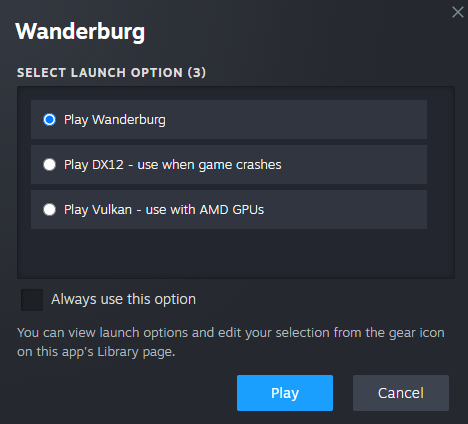
If Wanderburg crashes, try the alternative launch choice provided through Steam. The developer’s 0.9.8 announcement points to DX12 for crashes and Vulkan for AMD GPUs. Use the named choices in the launch dialog; you do not need to invent a command-line flag.
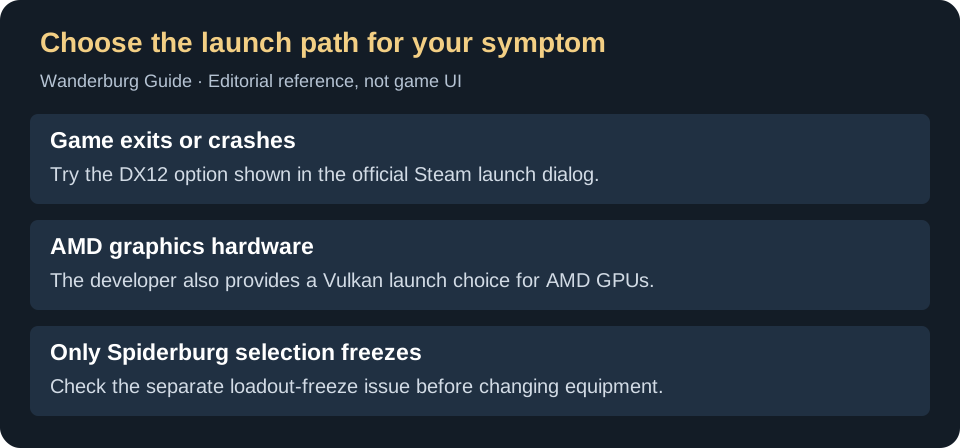
If the error says “Failed to load il2cpp” or the game does not start at all, start with the startup checks below. A launch failure needs different steps than an in-game crash.
Before launch: game won’t start
If Wanderburg never reaches the main menu, note the exact error first. Let any pending Steam update finish, then use Library → Wanderburg → Properties → Installed Files → Verify integrity of game files. Retry once after verification. The linked Steam instructions under IL2CPP checks explain the file check; it does not recover lost save progress.
If the message says “Failed to load il2cpp”, continue to check the game file and Windows block record. Do not assume every launch failure needs a runtime download or that file verification removes a Windows policy block. If the game runs but your unlocks disappeared, use the local save backup and recovery checks before playing another run.
In-game crashes: try the official launch choices
If the game starts successfully but crashes during play, use the graphics mode options the developer provides:
- Close the game and start Wanderburg from your Steam Library.
- In the launch-choice dialog, select the DX12 option for the crash test. The official image also labels a Vulkan option for AMD GPUs.
- Leave the option to always use that choice unchecked while comparing results, so the choice is easy to revisit.
- Repeat the action that previously triggered the crash. Record the selected mode and whether the symptom changed before trying another option.
If Steam already remembers a choice, the official dialog says that launch options can be viewed and the selection edited from the gear icon on the app’s Library page. Change the remembered selection there. This is a graphics-mode check, not an instruction to delete a save or reinstall Windows.
Crash, low frame rate or frozen loadout?
On a small screen, swipe the table sideways to compare all columns.
| Symptom | Next useful check |
|---|---|
| The game closes or reports an error | Compare the official launch modes and record the exact error and trigger. |
| The game continues but is slow | Record where the slowdown starts and the hardware. A crash-mode suggestion is not a promised FPS improvement. |
| Spiderburg cannot start or its setup freezes | Use the Spiderburg symptom checks; a missing Top Module warning and an unresponsive screen are different problems. |
Crashing on a castle upgrade or vehicle change
Compare the official launch modes one at a time and repeat the same trigger. Recent reports separate a game exit when changing vehicles from a freeze after the first boss, at the castle-upgrade screen. These are different from a responsive missing-Top-Module warning.
- Vehicle change: in the October 25 vehicle-change thread , 185th_Vagrant reports switching from Vulkan to DX12 and then changing vehicles without the earlier failure. One other participant reports the symptom in the default mode and Vulkan. That is one recovery report, not two independent successful tests.
- First-boss upgrade freeze: a separate October 26 thread reports the frozen upgrade screen. The DX12 suggestion there comes from the same 185th_Vagrant; do not count it as a second person confirming a fix.
- DX12 makes it worse: Sir_Knumskulll reports an almost immediate DX12 crash in the October 23–25 crash discussion . That thread also contains end-screen/controller and equipment-selection failures. Neither API is a universal solution.
- Keep the same vehicle, input device and action for the comparison. Note whether the game closes, stops responding, or remains open with a warning.
- Use Steam’s named launch choices described above. Record the previous selection, test the alternative once and compare the exact vehicle change or upgrade.
- If the mode fails sooner or the screen still freezes, return to the previous choice and report both results. Include the installed build, GPU, input method and last working screen. Avoid changing several settings at once.
Reports checked October 27, 2026; the forum’s displayed time zone was not confirmed. The 0.9.15 menu overhaul does not establish a general crash repair. No affected machine was tested for this guide.
Failed to load il2cpp: check the file and the block record
A Wanderburg launch-error thread reports Windows 11 blocking GameAssembly.dll, even when the file is present and Steam verification has finished. The original poster reported recovery after a patch, but later replies through September 17 report the error again. That is a reported failure pattern, not proof that every IL2CPP error has the same cause or that a particular patch fixes it for everyone.
- Let Steam finish any pending Wanderburg update. In the Library, right-click Wanderburg, choose Properties → Installed Files → Verify integrity of game files, then try launching again. These are Steam’s file-check steps .
- Use the Installed Files screen’s browse option to check whether
GameAssembly.dllexists in the game folder. Record the result; do not download a replacement DLL from an unrelated website. - Open Windows Security’s Protection History and look for a game-file block at the time of the failed launch. If it is empty, the thread shows why that alone does not rule out a Code Integrity block.
- In Windows Event Viewer, open Applications and Services Logs → Microsoft → Windows → CodeIntegrity → Operational. Look for an event matching the launch time and
Wanderburg.exeorGameAssembly.dll. Microsoft defines event 3077 as a file blocked by an enforced App Control policy. A matching record is evidence for that specific failure; the error message alone is not. - Send the game version, Windows version, exact error, file-presence result and matching event ID/policy to the linked game thread. Remove personal folder names from screenshots. If no matching event exists, report that too instead of assuming Smart App Control is responsible.
This diagnostic path keeps Windows protections enabled. A persistent policy block needs a supported resolution for the affected build; repeated verification cannot by itself establish that the policy will allow the file. The checks help distinguish missing files from a documented block, but were not tested on an affected PC for this guide.
Event location and meaning: Microsoft’s App Control event reference . The Wanderburg-specific thread was checked October 27, 2026. A newer reply from edwardlego again reports a DLL/publisher block despite verification; Sdaan says the team is investigating and passes on one user’s report that pending Windows security updates plus a restart helped. If updates are pending, finish them and restart before retrying once. That second-hand recovery is a low-confidence check, not evidence of a universal fix or a reason to disable Smart App Control.
If it still crashes
Send a concise reproduction report through the game’s Steam discussions : installed game version, Windows version, GPU model, launch mode, and the action immediately before failure. Include the exact visible error if there is one. State whether it happens on launch, when selecting equipment, or during a particular encounter. That separates a repeatable trigger from an occasional slowdown.
Verification notes
The official September 10 hotfix 0.9.8 announcement and its launch-dialog image support the mode choices above. The image was inspected for this guide. These are developer-provided troubleshooting options, not a guarantee that every later crash is fixed. For hardware requirements and Steam Deck caveats, see platform support.